Loading Web Documents
Using FTP programs
There are many graphical FTP programs available. A good place to search for Internet related software, much of
it free or shareware is CWS Apps. Or try CuteFTP.
To setup an FTP program, you must enter a few settings. The Host Name is your domain name. Enter
your account username and password. The Login Type should be Normal, not anonymous. Once logged in, you should
see a listing of the files and directories in your account. .
Ascii / Binary Modes
You must transfer files in the correct mode in order for your scripts and pages to work properly. The two
modes are Ascii and Binary.
Ascii - Perl scripts and html files are Ascii files, meaning they are plain text files. Any file that you
can view normally with a text editor such as Notepad is an Ascii file and MUST be transferred using the Ascii mode.
If you transfer an html file via the binary mode, it will not prevent the page from being seen, but if you transfer
a perl script via the binary mode, it will NOT work.
GIF's and JPEG's are Binary files, and MUST be transferred using the Binary Mode. If not, the files will be
corrupted. Any file that looks garbled when you try to view it with a simple text editor is probably a binary file
and should be transferred in binary mode. Zip and Gzip files are also binary files.
Telnet
Telnet is an interface to the command line of a server. It allows you to type commands, much like DOS, to manage
your account. Most PC's have telnet software already setup, usually located in the "Windows" directory. You can
click Start, Run, and then type telnet to start telnet.
When using telnet, click Connect, Remote System, and enter your domain name. When
presented with the "Login:" prompt, enter your account username. Then enter your password. Once logged in,
you will see a prompt such as:
eel:~$
Here you can type commands much like you would with DOS to change directories, delete and edit files, etc.
WebShell - Web Based Account Management
Redwood Internet offers WebShell, a tool that enables you to manage your account online with your web browser.
WebShell is a graphical interface to your account, allowing you to copy, edit, delete, move, view, change
permissions, setup password protected web pages, upload, compress, download, etc.
Here is a screenshot of what it looks like:
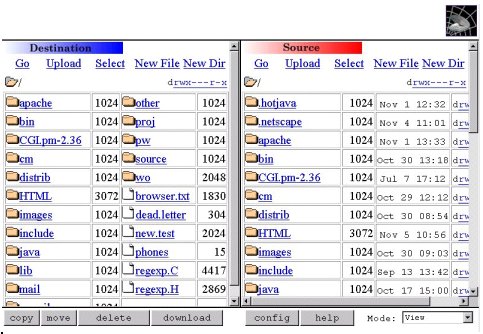
WebShell
dispays an account in 2 column format, and performing any action on a file or directory is as easy as clicking
on the object and selecting an action to perform.
|